


Insights from the Field,
Shared by Our Experts
At Basisci, we believe technical knowledge becomes more valuable when shared. Through Basisci Technical Tips, our SAP specialists share practical insights, lessons learned, and solutions drawn from real-world projects and daily operations.
Each edition brings together selected contributions from our team, turning individual expertise into a growing knowledge resource for the wider SAP community.
Keep SAP HANA Table Size History Longer
Need to analyze how your SAP HANA tables have grown over time? By default, the statistics server may retain table disk size history for only 42 days (check using SQL: “HANA_StatisticsServer_Schedule”, ID = 5010)
Increase the retention time of statistics server ID 5010 (Collector_Global_Table_Persistence_Statistics) to 365 days to support long-term table growth and capacity planning.
Implementation:
UPDATE _SYS_STATISTICS.STATISTICS_SCHEDULE SET RETENTION_DAYS_CURRENT = 365 WHERE ID = 5010;
Why does it matter?
Longer history helps you identify table growth trends and plan database capacity before storage becomes a problem.
Dont just monitor todays database size. Track how it grows over time!
Yüksel Akçınar
Managing Partner at Basisci Information Tech.
Linkedin Profile
Additional SAP HANA Metrics in SAP Cloud ALM
By default, SAP Cloud ALM provides a limited set of SAP HANA metrics through S/4HANA Health Monitoring. However, additional database metrics can be enabled with a few configurations.
How to enable additional metrics?
Prerequisites:
• SAP Host Agent Patch 67+ (matching versions on application and database hosts)
• ST-PI 7.40 SP32+
Configuration:
• Maintain the SAP HANA user store as described in SAP Note 2023587.
• If application and database servers are on separate hosts, add the database host as a Federation Peer through the application server’s SAP Host Agent UI.
Before configuring federation, temporarily deactivate Health Monitoring via /SDF/ALM_SETUP. Once completed, reactivate it and verify the additional metrics in SAP Cloud ALM.
What additional metrics become available?
• HANA Data & Log Backup Status and Age
• HANA License
• HANA Service Memory
💡 Tip: For on-premise systems, these configurations can be performed directly by your Basis team. For SAP-managed RISE environments, open a service request to SAP for the host-level configurations.
References:
SAP Note 3691701: https://lnkd.in/dv2QsqtR
Credit: Jon Simmonds
Beyza Akçınar
SAP Basis Consultant at Basisci Information Tech.
Linkedin Profile
Time Zone Settings for SAP Cloud ALM Alerts
Many of us have already activated SAP Cloud ALM in our environments and started benefiting from its centralized monitoring capabilities. Being able to monitor critical metrics in real time and respond to alerts before issues escalate brings significant convenience and efficiency to our daily operations.
However, when initially bringing Cloud ALM into production, there is one small detail that can easily be overlooked and occasionally cause confusion: the Time Zone setting!
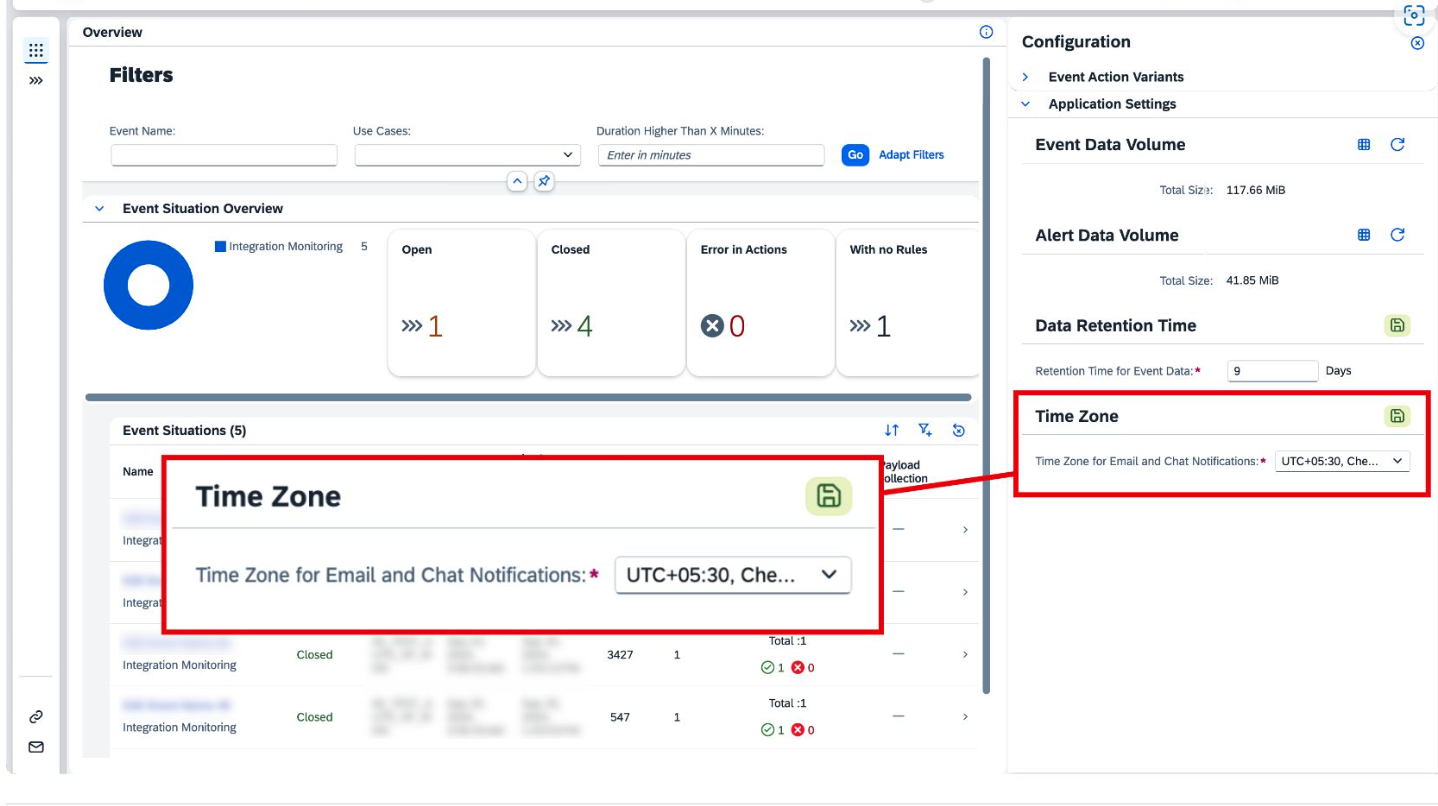
By default, timestamps in Cloud ALM alerts are displayed in UTC. If you leave this setting unchanged, it can be difficult to determine exactly when an alert occurred in your local time zone, potentially leading to confusion when analyzing incident response times.
Fortunately, the solution is simple. To display alert timestamps in your local time zone, navigate to the Intelligent Event Processing application in SAP Cloud ALM and update your time zone settings.
Related SAP Note:
https://lnkd.in/dYp2Ef_A
Many of you may already be familiar with this detail, but it is a useful reminder for those who might have overlooked it or are just getting started with SAP Cloud ALM.

Mehmet Şahin
SAP Basis Team Leader at Basisci Information Tech.
Linkedin Profile
Is STMS_QA Enough to Enforce Transport Approvals?
Enabling the QA Approval Procedure (STMS_QA) does not necessarily guarantee that all transport requests require approval before import.
Why?
Certain CTS administrative authorizations, particularly S_CTS_ADMI with CTS_ADMFCT = TQAS, allow users to activate inactive transport requests, potentially bypassing the QA approval process.
What should you check?
• Review which users and roles have been granted the TQAS authorization.
• Restrict this authorization to designated administrators.
• Periodically review transport approval and import activities.
💡 Tip: STMS_QA configuration and CTS authorizations should be reviewed together to ensure effective transport approval controls.
📚 References:
SAP Note 2470139: https://lnkd.in/dNEBJt9D
Credit: Jon Simmonds
Beyza Akçınar
SAP Basis Consultant at Basisci Information Tech.
Linkedin Profil
Favorite SAP HANA SQL Statements from Collection
SAP Note 1969700 – SQL Statement Collection for SAP HANA is a valuable reference for SAP HANA Basis administrators. (https://lnkd.in/dmSgD3Ak)
It provides a collection of SQL statements that can help you analyze:
Some useful ones:
SQLStatements
==========================
HANA_Configuration_Overview
HANA_Configuration_Parameters
HANA_Disks_DiskUsage
HANA_Global_DiffReport
HANA_IO_LoadHistory
HANA_Jobs_JobProgress
HANA_LoadHistory_Hosts
HANA_LoadHistory_Services
HANA_Memory_Overview
HANA_Memory_TopConsumers
HANA_NSE_BufferCache
HANA_NSE_BufferCache_Tables
HANA_Replication_SystemReplication_KeyFigures
HANA_Replication_SystemReplication_Status
HANA_Resources_CPUAndMemory_CurrentDetails
HANA_Resources_CPUAndMemory
HANA_SQL_ActiveStatements
HANA_SQL_Hints
HANA_Tables_ColumnStore_PartitionedTables
HANA_Tables_LargestTables
HANA_Threads_CurrentThreads
HANA_Threads_ThreadSamples_AggregationPerTimeSlice
HANA_Workload_WorkloadClasses
SQLStatements_MiniChecks
==========================
HANA_Configuration_MiniChecks
HANA_Security_MiniChecks
SQLStatements_ABAP
==========================
HANA_ABAP_MiniChecks
HANA_ABAP_Parameters
HANA_ABAP_SDFSMON_Overview
HANA_ABAP_ShortDumps
💡 BASIS Tip:
You don’t need to memorize hundreds of SQL statements. Just Save them on your HANA Cockpit, DBACockpit or HANA Studio and run whenever needed.
Find the problem → Run the relevant SQL → Analyze → Take action.
Which SQL statement do you use most often?
Credit: Jon Simmonds
Yüksel Akçınar
Managing Partner at Basisci Information Tech.
Linkedin Profile
Connecting SAP Analytics Cloud (SAC) with SAP Datasphere
What is SAP Analytics Cloud (SAC)?
SAP Analytics Cloud (SAC) is SAP’s platform for reporting, data analysis, and visualization. It connects to various SAP data sources, enabling organizations to analyze their data and present insights through interactive dashboards and reports.
How Can You Connect SAP Datasphere to SAP Analytics Cloud for Reporting?
To report on data managed in SAP Datasphere using SAC, the following configuration steps are required:
🔹 Trusted Origin
The SAP Analytics Cloud URL is registered as a trusted origin in SAP Datasphere.
🔹 Live Connection
A live connection to SAP Datasphere is configured in SAP Analytics Cloud.
🔹 Secure Connection
Communication between the two systems is securely established over HTTPS.
🔹 Authentication & Authorization
User authentication is verified, and the appropriate access permissions to the relevant data are validated.
🔹 Connection Test
Once the connection is established, the accessibility of the relevant analytical models in SAP Datasphere is verified from SAP Analytics Cloud.
🎯 Outcome
With the correct configuration, analytical models developed in SAP Datasphere can be accessed and used directly in SAP Analytics Cloud for reporting and data visualization.
This integration enables organizations to leverage their existing analytical models and deliver business insights through SAC dashboards and reports.
📚 Detailed Technical Guide
For a more detailed technical walkthrough, refer to:
Ethem Duman
SAP Basis Consultant at Basisci Information Tech.
Linkedin Profile